
Backup your BitLocker key
Why it’s vital to backup your BitLocker key
In today’s threat-rich world, encryption is no longer optional—it’s essential. Microsoft’s BitLocker drive encryption protects your data by preventing unauthorized access to a PC’s drive if the device is lost, stolen or tampered with. But here’s the hidden catch: encryption only works if you have access to the recovery key when things go sideways. If you lose the key or it wasn’t backed up, you may be locked out—permanently. Microsoft’s own support guidance states: “Microsoft Support doesn’t have the ability to retrieve, provide, or recreate a lost BitLocker recovery key.”
For businesses and individuals alike, that means one thing: if your drive is encrypted and you cannot unlock it, you could lose access to your data entirely. Imagine a laptop fails during boot because of a hardware change, or a major Windows update alters the drive configuration—BitLocker may require the recovery key at startup. Without it, you’re stuck. And indeed, Microsoft confirms that you might be prompted for the recovery key “due to a security risk or hardware change.”
Adding to this, upcoming changes in Windows 11 signal that encryption is only becoming more deeply integrated. In a recent article, it was explained that starting in 2026, Microsoft will ship new PCs with a hardware-accelerated BitLocker encryption feature, meaning the encryption keys are “wrapped and isolated at the silicon level” for stronger protection. Windows Central The takeaway? Encryption is becoming stronger, but so is the need for reliable key backup.
What happens when you don’t backup your BitLocker key
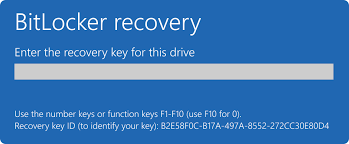
When you boot a PC and BitLocker asks for the recovery key (a 48-digit number) and you can’t provide it: you may lose access to the OS drive or any encrypted data drive. Devices may become unusable, important files inaccessible, recovery options limited. As Microsoft states: “A BitLocker recovery key is needed when BitLocker can’t automatically unlock an encrypted drive in Windows.” And without that key, the encrypted drive content remains locked—even for Microsoft. Delayed or non-existent backup of the key can turn routine hardware swaps, OS updates or system migrations into a full-on data-loss event.
For your clients or your business systems, that means downtime, lost productivity, potential compliance issues, and the cost of data recovery (which might not even be possible). That’s why securing and backing up the recovery key must be part of your holistic endpoint encryption and backup strategy.
Three methods to backup your BitLocker key (Windows 10 & Windows 11)
Here are three backup options for the BitLocker recovery key—each supported in Windows 10 and Windows 11. Screenshots below will show you where to click.
1. Save to your Microsoft (or Azure AD / work) account
- Click Start → type “BitLocker” → select Manage BitLocker.
- Next to the encrypted drive, click Backup your recovery key.

- Choose Save to your Microsoft account (or Save to your Azure AD account if it’s a work/school device).

- Finish the process by clicking Next. Your key is now accessible online via your account—make sure you know how to retrieve it from any device.

2. Save to a USB flash drive
- From the same BitLocker window (Manage BitLocker) pick Backup your recovery key.
2. Choose Save to a USB flash drive.

- Plug in a USB drive and select it. Important: Do not store the USB drive in the same physical location as the encrypted PC, as that weakens security.
- Click Finish. Label the drive (for example “Computer Name BitLocker-Key”) and store it in a safe location (e.g., locked cabinet or off-site).
3. Save to a file or print it
- Again in Manage BitLocker → Backup your recovery key.
- Choose Save to a file option and pick a location (e.g., secondary un-encrypted drive or external media).

- Or choose Print the recovery key and store the printout securely. Our advice: “Don’t keep it with the computer.”
- You can copy the text file to your secure cloud storage (e.g., Personal Vault in OneDrive) for additional redundancy.
At Park City IT Pros, our motto of delivering secure, reliable IT infrastructure means not just enabling encryption but ensuring you’re in control of the recovery process. Backing up your BitLocker recovery key is a small step with huge upside: it transforms BitLocker from a potential single-point-of-failure into a robust element of your security posture. With new hardware-accelerated BitLocker enhancements coming in 2026, now is the time to audit your processes and confirm your keys are safely backed up and accessible when you need them.
Don’t wait until recovery is your only option. Contact us if you’d like us to review your encryption and key-management strategy, and make sure you’re covered.
